3. Visual Scripting Editor
Visual programming is very understandable system and all you need is at least a taste of creativity. If you are familiar with node branching or modular panel connection or with blueprints [In UE], visual programming in Poly Engine - Script will be very easy for you.
As all the other visual programming languages, you can create variables, conditions, operations, statements, functions & methods. PE contains many new additions which might help you in many cases like Variable Connectors, Flexible Statements & Flexible Extended Statements [described in Source Programming]. You don't need to know Poly Engine source language syntax if you would like to work just with the visual form.
- Declaring variables & drag-drop elements
- Compiling order & functions
- Hello World
- Scripts & extensions
- Execution order
- Flexible Statements
- Compile
To declare any variable or to create any element in visual programming, use upper panel and select proper category. Let's choose 'variables' and create Integer. You can move with the cursor and place the element wherever you wish. Press left mouse to drop. To drag, press left mouse again.
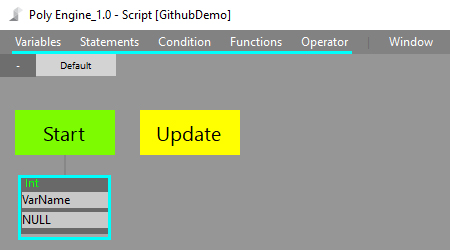
Compiling order is a system that tells the program what should be compiled first and what should be compiled last. All variables are in same compiling order (If you create any other element, you can see the order number in the right corner). To change compiling order, press the bottom-gray line of the element and drop it to the specific element to switch compiling order. By pressing the bottom-gray line you can change the element's executable function [default is Start]. You are also able to create your own function by pressing Add in Functions in upper panel.
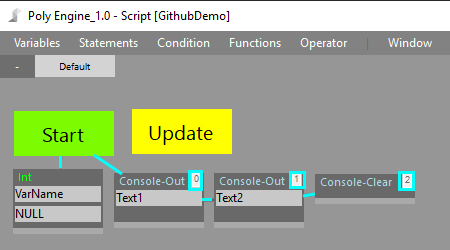
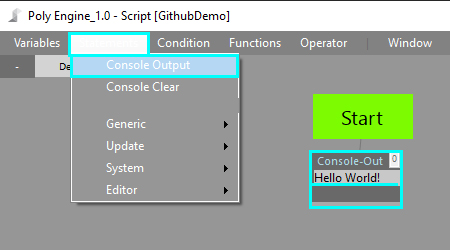
At the right side of the visual editor, you can see Output Console which will log you current state of the engine. You can use Output Console to log your own information that can be found in Statements/Console Output. To mention any declared variable in Console-Output, use @ and ; characters. Example: Hello World. My Age is @age; and that's not too much! This format will help the program to recognize declared variables and regular text.
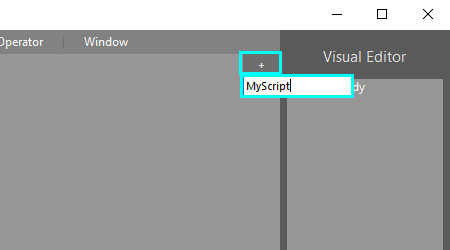
Poly Script allows you to extend your scripts and make it more clear. To add new script to you project, use right plus button, enter script name and press enter. To delete script, use left minus button. Please notice that Default script could not be deleted.
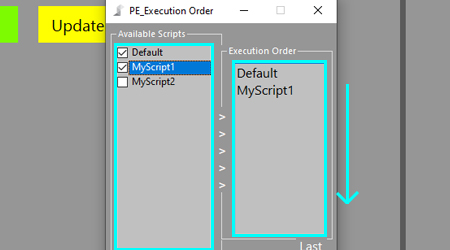
Execution order tells the program which script should compile first and which script should compile last. Execution Order can be found in the upper panel in Window/Execution order. You can select which scripts will be added to the execution order and what order it should keep. To change script execution order, simply drag selected script name in the right panel and drop onto script you want to switch. The order in the right panel starts from top to bottom.
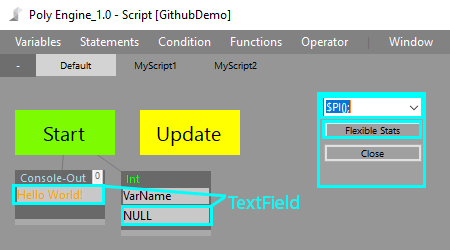
Flexible Statements allows you to use Poly-Engine built in functions & returnable special methods. To show flexible statements option menu, double-click on text field of your element. The property window will how up and you can choose one of the flexible statements. You can choose between Extended Statements & Flexible Statements. More about this in Source Programming.
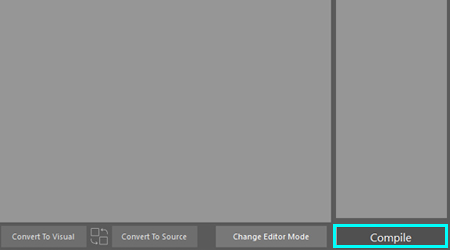
If you would like to execute your work, hit the Compile button. The console will log engine status and you are done. If you would like to see the original source code or would like to code in Source Code without visual support, just press Change Editor Mode. If you work in source code and would like to convert your source to the visual form, set your editor mode to Visual Editor & hit Convert To Visual. The same thing, just opposite occurs if you hit Convert To Source button.