Output Text Screen
Output functions explained in this tutorial are only functions for text displaying. Another tutorial will be done for backgrounds.
The output system is available for BG_MODE1 but should work with other modes. If you need it in other mode, you perhaps need to adapt, develop it.
It is managed via a map of 32x32 characters. The console functions are used to display text.
When you want to display a text, you must specify the x,y coordinates of the text in this map.
You've got two ways to display text on screen :
- using the default map shipped with PVSnesLib (text are sent to display during Vblank)
- using your own map and send it to screen after waiting for vblank with the DMA functions.
The first thing to use the display system is to init the console with the background that will handle the text, and of course, the font to use.
We will see later how to customize the font. PVSneslib is shipped with a default font named pvsneslibfont.bmp. Just take a look at it to know how characters are.
To init display system, just call consoleInitText(0,0, &snesfont, &snespalfont) where :
- the first parameter is the background that will handle the text (0..2)
- the second one is the palette number (0..16)
- the third one is the address of graphics for font converted with gfx4snes
- the last one is the address of palette for font converted with gfx4snes
.. Somewhere where you initialized variables ...
extern char snesfont;

//---------------------------------------------------------------------------------

.. somewhere in the beginning of your main code ...

    // Initialize SNES
    consoleInit();

    // Initialize text console with our font
    consoleInitText(0, 0, &snesfont,&snespalfont);
You can also change the text graphics and map VRAM address by using the functions:
    consoleSetTextVramBGAdr(background graphic address);
    consoleSetTextVramAdr(background map address);
    consoleSetTextOffset(offset of text in background map address);
The default values are:
| Description | Address |
|---|---|
| background graphic address | $3000 |
| background map address | $6800 |
| offset of text in background map address | $0000 |
here is the hello_world example of new vram entries:
    // Initialize text console with our font
    consoleSetTextVramBGAdr(0x6800);
    consoleSetTextVramAdr(0x3000);
    consoleSetTextOffset(0x0100);
    consoleInitText(0, 16 * 2, &tilfont, &palfont);
This is done with the consoleDrawText function, just call it with text coordinates and text value. For example consoleDrawText(5,10,"hello world") to display at column 5, row 10 the text **hello world **.
Also, you can format the string to display with generic format options :
For example, %d is used to display integer like consoleDrawText(1,1,"X=%d",varx) that will display X=10 if varx equals 10.
To display a string, you must use %s and %c for a char.
For example :
char name[32];

  strcpy(name,"PVSneslib");
  consoleDrawText(1,1,"Name of lib=%s",name);
Just take a look at standard printf options of C language to know exactly what you can do.
You can use only two colors, the text and background color with the consoleSetTextCol function. But only text color is important.
Color is designed with the Red, Green and Blue parameters.
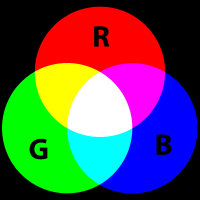
Each parameter must be a number between 0 and 31. And you must call function RGB15 to have the final correct color.
So, RGB15(0,0,0) is the black color and RGB15(31,31,31) is the white color.
For example, to use a red text color with black background, just put :
consoleSetTextCol(RGB15(31,0,0), RGB15(0,0,0));
Basically, a custom font is a tiled background, each tile representing a specific character. Here is a basic custom font layout:

The layout is very important, each character must be 8x8 pixels and only from ascii code 32 to 127.
You also have only two colors, the background color (which is the transparent color) and the font color.
We are not going to use the palette for the text font, but you must know that the background color must be the first color (entry #0) and the text color the next one (entry #1 of palette).
For a more accurate editing, I suggest you to display a grid (8×8 pixels) in your favourite graphics editor, like this (zoomed):

One more thing to know about this layout, it must be compiled with the "non optimized" -R flag of gfx4snes (to avoid lost of characters).
pvsneslibfont.pic: pvsneslibfont.bmp
	@echo convert font with no tile reduction ... $(notdir $@)
	$(GFXCONV) -u 16 -s 8 -o 2 -e 1 -R -m -t bmp -i $<